MetadatalocaleentitleC: Drive Full? How to Free Up Space and Find the Largest Files in Windows 11 (Including 74 GB of CapCut Cache)slugc-drive-full-find-largest
MetadatalocaleentitleC: Drive Full? How to Free Up Space and Find the Largest Files in Windows 11 (Including 74 GB of CapCut Cache)slugc-drive-full-find-largest-files-windows-11seo_titleC: Drive Full? Free Up Space & Find Large Files in Windows 11seo_descriptionRunning out of space on drive C: in Windows 11? Learn how to find the largest files, inspect AppData, and safely clear 74 GB of CapCut cache.summaryA beginner-friendly guide to freeing up space on drive C: in Windows 11: built-in cleanup tools, finding the largest files and folders, understanding AppData and caches, and a real example involving 74.4 GB of CapCut cache.tags_cmsWindows 11C Drive FullStorageCapCutTutorialauthorKaton FajarTampilkan lebih banyak
C: Drive Full? How to Free Up Space and Find the Largest Files in Windows 11 (Including 74 GB of CapCut Cache)
The C: drive on my laptop has a total capacity of 707 GB, with just 74.7 GB left. I knew I needed to delete something, but I wasn't sure what was safe to remove. Deleting the wrong files from the system drive can cause an entirely new set of problems.
I scanned the entire drive with Framer, a local gallery app for Windows 11 that I built. Its Disk Usage feature reads the files and sorts them by size. The results included files I had never opened myself: a 12 GB Android emulator snapshot and 74.4 GB of CapCut cache in AppData. Disk Usage is read-only, so the scan itself didn't delete anything.
Why your C: drive fills up
Drive C: contains Windows, installed applications, and your user profile. That means files can quietly accumulate there without you noticing. Common causes include app caches and temporary files in AppData, a crowded Downloads folder, leftover Windows update files, and large files created by development tools such as emulators. usekudu's guide to an oversized AppData folder lists browser caches, Discord, Teams, Steam, Epic Games Launcher, and Adobe among the common space hogs. On my laptop, the culprits were different: CapCut, an Android emulator, Flutter, and Unity.
Running low on space can also interfere with Windows itself. Microsoft notes that a full Temp folder can trigger a Low Disk Space warning, and Windows feature updates may require additional free space before they can install. You can read more on Microsoft's guide to freeing up drive space.
Terms that often cause confusion
Cache is temporary data an application stores so it doesn't have to download or process the same information again. Applications usually recreate these files when needed.
Temporary files (Temp) are used by Windows and applications for short-lived tasks. Enter %temp% in File Explorer's address bar to open the folder. Files currently in use generally cannot be deleted.
AppData is a hidden folder at C:\Users\\AppData. It contains three subfolders. Local stores data specific to your computer, including many caches. LocalLow is similar but is used by applications with more restricted permissions, such as sandboxed apps. Roaming stores settings that can be synchronized across devices. Do not delete the entire AppData folder. Only inspect specific cache, log, or temporary subfolders, with the corresponding app closed. Petri explains the folder structure in more detail.
Recycle Bin holds files you delete normally. Those files still occupy disk space until the bin is emptied.
Windows.old is a copy of a previous Windows installation left after an update. Removing it prevents you from rolling back to that version, and Microsoft warns that the deletion cannot be undone.
pagefile.sys is a virtual memory file located in the root of drive C:. Windows uses it as part of memory management.
Emulator snapshot is a saved state of an emulator, such as an Android emulator, that allows it to start faster. These files can take up tens of gigabytes.
AppData is hidden by default. The quickest way to open it is to press Win + R, type %localappdata%, and press Enter. You can also open File Explorer, choose View > Show > Hidden items, and navigate to C:\Users\\AppData.
How to free up space on drive C: using Windows 11's built-in tools
Start with the tools already included in Windows. They're all free.
Check your available space. Open File Explorer, select This PC, and look at the drive bars under Devices and drives.Drive C: has 74.9 GB free out of 707 GB in File Explorer.
Open Cleanup recommendations. Go to Start > Settings > System > Storage > Cleanup recommendations. Windows shows four categories: Temporary files, Large or unused files, Files synced to the cloud, and Unused apps. Select the items you want to remove, then click Clean up in the relevant section. If you updated Windows less than 10 days ago, the previous Windows installation may appear among the removable system files. Deleting it removes Windows.old, and that action cannot be undone.
Enable Storage Sense. This feature can automatically clean up temporary files and items in the Recycle Bin. You can configure how long files remain in the Recycle Bin and Downloads folder, and when cloud-synced files become online-only.
Review Videos, Music, Pictures, and Downloads. Microsoft notes that large personal files are often stored in these folders. In File Explorer, select View > Details, right-click an empty area, and choose Sort by > Size. Delete files you no longer need or move them to another drive.
Empty the Recycle Bin. If you don't empty it after deleting files, the space may not be freed.
Change where new content is saved. Go to Settings > System > Storage > Advanced storage settings > Where new content is saved, so new files don't keep accumulating on drive C:.
How to find the largest files and folders in Windows 11
Cleanup recommendations groups used storage into categories. To investigate folder by folder and identify exactly what's taking up space, you need a disk space analyzer. In File Explorer, the Size column shows file sizes, but not folder sizes. To check a folder's size, you have to right-click it, open Properties, and read Size and Size on disk. Doing that one folder at a time isn't practical when a drive contains millions of files.
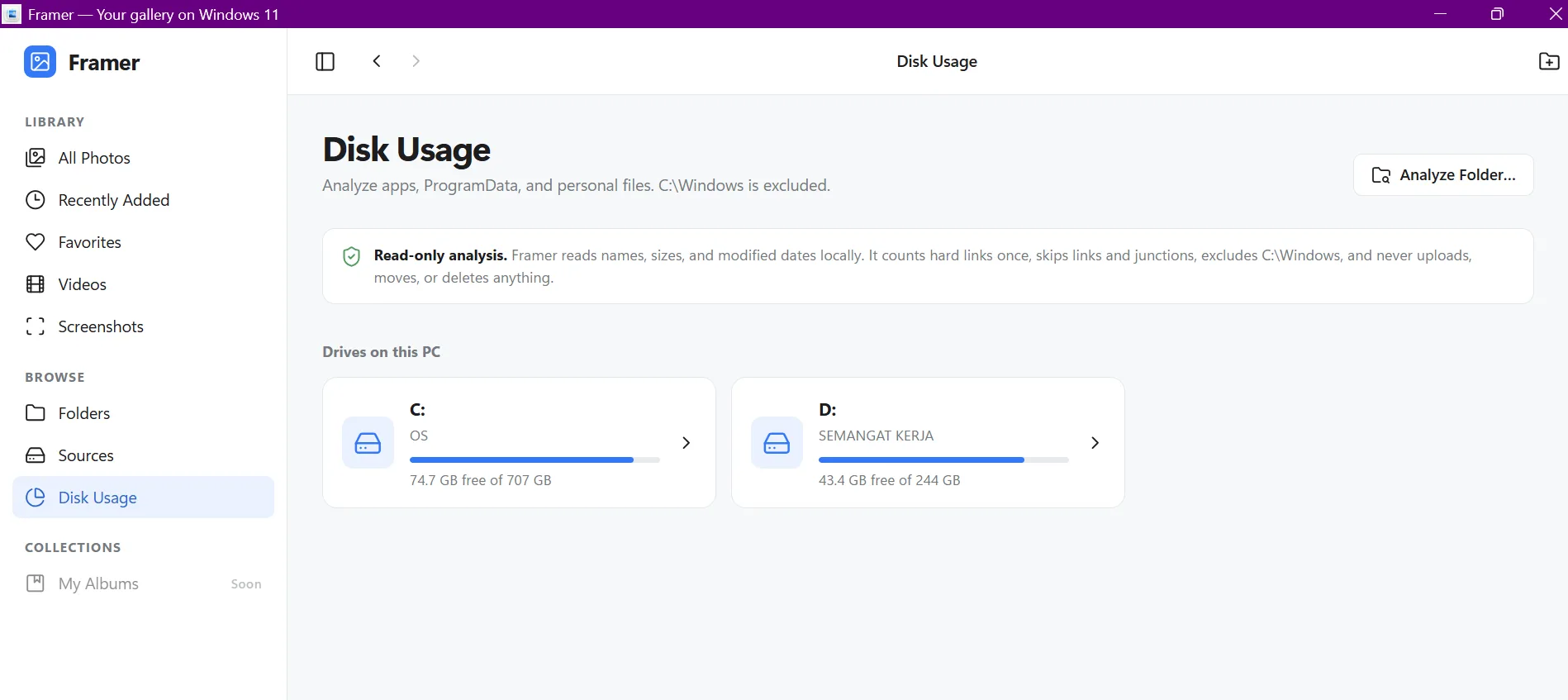
For this example, I'm using Framer. Open Disk Usage in the sidebar and select a drive. The page shows the available space on each drive: 74.7 GB out of 707 GB for my C: drive, close to what File Explorer reports.
Framer's Disk Usage screen. Want to check just one folder? Use the Analyze Folder button.
During a scan, Framer displays the number of files, their total size, and the folder currently being read. You can cancel the scan at any time. It runs on a separate thread, so the interface remains responsive. My drive contains millions of files, so a full scan takes some time.
Scan progress in Framer.
Framer excludes C:\Windows, skips symbolic links and junctions, and counts hard-linked files only once to avoid inflating totals. As a result, the scan total won't necessarily match the space-used figure in File Explorer exactly.
The results are divided into three tabs.
The Folders tab lists folders from largest to smallest, along with their file counts and percentages. You can drill down through each folder until you find what's taking up space.
The Largest Files tab sorts individual files by size. The two largest on my drive were ram.img (12.0 GB) and pagefile.sys (10.5 GB).
The two largest files on my C: drive.
ram.img was located at C:\Users\\.android\avd\Pixel_7_Pro_API_36.avd\snapshots\default_boot\. It was an Android emulator snapshot last modified in December 2025. If you no longer use that emulator, remove it through Device Manager in Android Studio rather than deleting its files one by one. pagefile.sys is a Windows system file and should not be deleted manually.
The Recommendations tab highlights locations that are generally worth reviewing, with risk labels. That's where I found the CapCut cache.
74.4 GB of CapCut cache in AppData
The top entry in Recommendations was CapCut's cache folder: 74.4 GB spread across 213,948 files.
The Recommendations tab in Framer.
The folder was located at C:\Users\\AppData\Local\CapCut\User Data\Cache\. To open it, press Win + R and enter:
%LocalAppData%\CapCut\User Data\Cache
If you installed CapCut through the Microsoft Store, its data may instead be under %LocalAppData%\Packages\.
Disk Usage doesn't have a delete button. Each result has an Open Location button that opens the exact folder in File Explorer. You can inspect it before deciding what to remove. Here's the safer sequence:
Confirm that you're looking at a cache or temporary-file folder.
Close the application completely, including any background processes in the system tray or Task Manager.
Back up important projects if the application stores project files near its cache.
Delete the folder's contents, not its parent folder (User Data, AppData, or a project directory).
Empty the Recycle Bin.
Reopen the application and make sure everything still works.
The CapCut Cache folder on my laptop is now empty. CapCut will populate it again as I use the app, so it's worth checking periodically.
Three other entries appeared in the same list:
Location
Size
Notes
C:\Android\flutter\bin\cache\
1.8 GB
Flutter SDK cache; usually downloaded again when needed
...\Unity\Hub\Editor\...\emscripten\cache\
1.6 GB
Located under Program Files; best not to delete manually
AppData\Local\Temp\
—
Temporary files used by Windows and applications
Framer's "Usually safe to review" label means a folder is generally worth inspecting. The label is based on the folder name, and the app itself makes clear that recommendations are clues, not automatic deletion decisions.
What you can safely delete—and what you shouldn't
Location or file
Safe to review?
Notes
Recycle Bin
Yes
Empty it after checking the contents
Temporary files in Cleanup recommendations
Yes
Uses Windows' built-in cleanup tool
%temp%
Yes, contents only
Files currently in use generally cannot be deleted
Application Cache folders under AppData\Local
Yes, contents only
Close the application first
Downloads
Yes, after reviewing
Often contains old installers
Unused emulators or virtual machines
Yes, through their management tools
For example, Android Studio's Device Manager
Windows.old
Use caution
Deletion cannot be undone
Entire AppData folder
No
Contains settings and data for installed applications
C:\Windows
No
System folder
Program Files
No, except by uninstalling apps
Uninstall through Settings rather than deleting folders
pagefile.sys
No
Windows virtual memory file
Project and draft folders
Not until backed up
These are not caches
How to stop your C: drive from filling up again
Scan your drive once a month and check Largest Files and Recommendations, especially if you regularly edit videos or develop applications.
Enable Storage Sense for the Recycle Bin and Downloads folder.
Change the default save locations for new content in Advanced storage settings.
If you use OneDrive, enable Files On-Demand so online-only files take up minimal local space.
Uninstall applications and emulators you no longer use through their own management tools.
Move finished-project footage and raw files to an external drive.
Try Framer
Framer is free, open source under the MIT license, and doesn't upload your files. You can download the .exe installer from its GitHub Releases page. The installer isn't digitally signed yet, so Windows SmartScreen may display a warning the first time you run it. If you trust the installer you've downloaded from the project's official GitHub release, choose More info and then Run anyway. You can also read the Framer comparison with WizTree, WinDirStat, TreeSize, and SpaceSniffer.
GitHub doesn't have a like button. Instead, you can star repositories you appreciate, which also helps other people discover them.
Hi, I am Katon Fajar Utomo. A Web Developer & SEO Specialist dedicated to building high-performance modern websites, scalable internal systems, and technical search engine optimization.





Expert's summary
MetadatalocaleentitleC: Drive Full? How to Free Up Space and Find the Largest Files in Windows 11 (Including 74 GB of CapCut Cache)slugc-drive-full-find-largest
Katon Fajar
B2B tech partner